
 Facebook
 X
X LinkedIn
 Forward
 Nebraska LMS User Instructions.docx
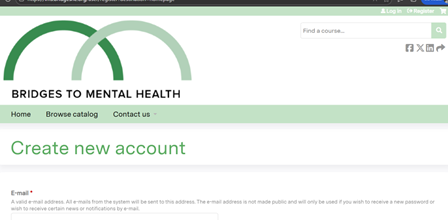
Create A New Account
Registering an account with the system creates credentials for the learner, allows them to enroll in courses, track earned credits, and interact with the site.
1. Navigate to the home page.
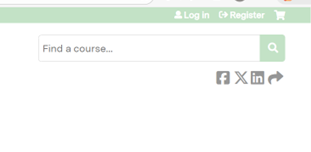
2. Click on the "Register" link in the upper-right corner of the screen.
3. Enter your email and required information to Create a new account.
Logging In
Logging into the system allows the learner to enroll in courses, track earned credits and interact with the site.
1. Navigate to the home page.
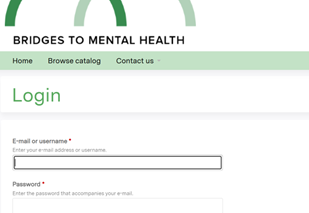
2. Click on the "Log in" link in the upper-right corner of the screen.
3. Enter your username and password into the text fields.
5. Click the "Log in" button and you will be brought to the home screen
Register For A Course
1. Once you are logged in, you can register for courses. To find the course you’re looking for, hover your mouse over the “Browse Catalog” button
2. Select the course you’re looking for.
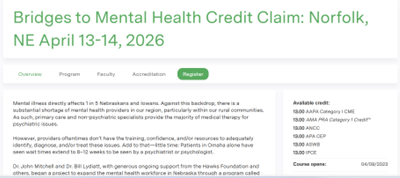
3. When you reach the course, you will land on the overview tab by default.
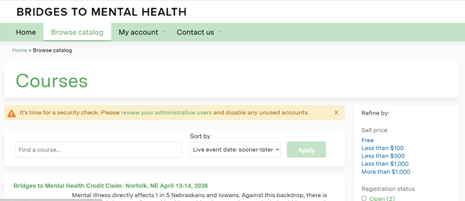
Here you can review credit types as well as general course info.
To register for the course, click the green ‘‘Register” button.
You will then see the Course listed with its price, status, and the list of modules.
To add the course to your shopping cart, click the “Add To Cart” button or Click Take Course if there is no cost.
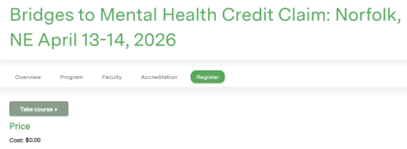
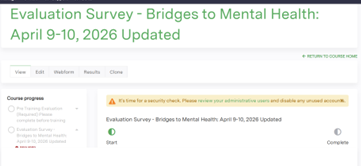
You will now see the course listed in your LMS account on the Pending Activities tab so you can access the modules and course evaluation.
Complete the Course Evaluation.
How To Claim Credit
Once you’ve completed your course, you can claim credit.
1. Click the “Start” button on the Credit course tab as indicated in the screenshot below.
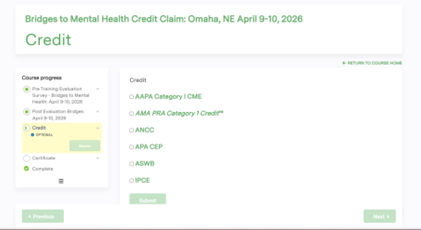
- You will see the list of available credit types. Select the one(s) applicable to you by clicking the check box and then click the “Submit” button
- Choose the type of CE you would like to claim, hit Submit to Print your Certificate.
- Click on Download to Print Your Certificate.
Additional Instructions
Editing Your Account
Please view the user guide at the youtube link below: https://www.youtube.com/watch?v=VrDcf0n8jag
Editing Account Details After logging in, you can edit your account details.
1. Navigate to the home page.
2. Log in to the site.
3. Click on the "My account" link at the top right corner of the page.
4. Click on the "Edit" tab" at the top of the page.
The following may be edited:
5. Edit the email address.
6. Enter a new password for the learner.
7. Check or uncheck the "Personal contact form" checkbox.
8. Click the "Save" button
Editing Profile
After a learner has logged in, they can edit their profile to update personal information.
1. Log in to the site.
2. Click on the "My account" link at the top right corner of the page.
3. Click on the "Edit" tab.
4. Click on the "Profile" subtab.
5. Edit the desired information.
6. Click "Save."
Resetting Lost Password
If the learner is unable to remember their password, they must reset it.
1. Click the "Log in" link in the upper-right corner of the screen.
2. Click on the "REQUEST NEW PASSWORD" tab.
3. Enter the learner's username or e-mail address.
4. Click the "E-mail new password" button.
5. Click the link in the email sent to the learner.
6. Enter a new password in the form that appears.
7. Click the "Submit" button.
If you need assistance, please contact [email protected]
How To Claim Credit
- Once you’ve completed your course, you can claim credit.
Click the “Start” button on the Credit course tab as indicated in the screenshot below.
- You will see the list of available credit types. Select the one(s) applicable to you by clicking the check box and then click the “Submit” button
- Choose the type of CE you would like to claim, hit Submit to Print your Certificate.
- Click on Download to Print Your Certificate.
Certificates/Transcripts
How do I download my transcript?
- Select the “My Account” tab and click on Transcript.
- Download a pdf of completed, pending or external credit activities.
How do I go to see my credits from past courses?
- Under the “My Account” tab click on Transcript.
- Choose “Completed activities,” “Pending activities” or “External credits”.
- Credits from past courses can be searched by title or within a date range.
- Transcripts can be viewed, downloaded, or printed.
- How can I download a certificate?
- Under the “My Account” tab click on “Transcript”.
- Click “Certificate” for any course as appropriate.
How do I add external credit awarded outside of the organization?
- Log in to the site.
- Navigate and click on "My Account".
- Click the "My Activities" tab.
- Click "External Credits."
- Click "Add Credits”.
- Type in the Course name, Date Completed, and Credit hours. A certificate may be uploaded.
- Click "Save."
- External credit entered appears on the page. The data may be filtered by date or downloaded as a PDF.
Course Information
Will a course save my progress if I need to step away and return to it later?
- Yes, it will automatically save your progress.
Will a quiz/evaluation save my progress if I need to step away and return to it later?
- Quizzes/Evaluations will not save your progress unless you click the “Save Progress” option.
How do I return to a course I’ve already registered for and resume it?
- Under the “My Account” tab click on “Course”.
- Click the course as appropriate.
- Click “Take course”.
- Click “Resume course”.
IT Information
Which Browser should I use for the EthosCE website?
- Ethos CE works with most modern web browsers (e.g., Chrome, Internet Explorer, MS Edge, Safari)
Do I need to have Adobe Reader to participate in a course?
- A PDF reader, such as Adobe Acrobat Reader, will be required to participate in some courses.